New Foundation
With this button, you can create a new foundation. Each foundation type has predefined geometries and a quick editor for creating pedestals and load combinations.
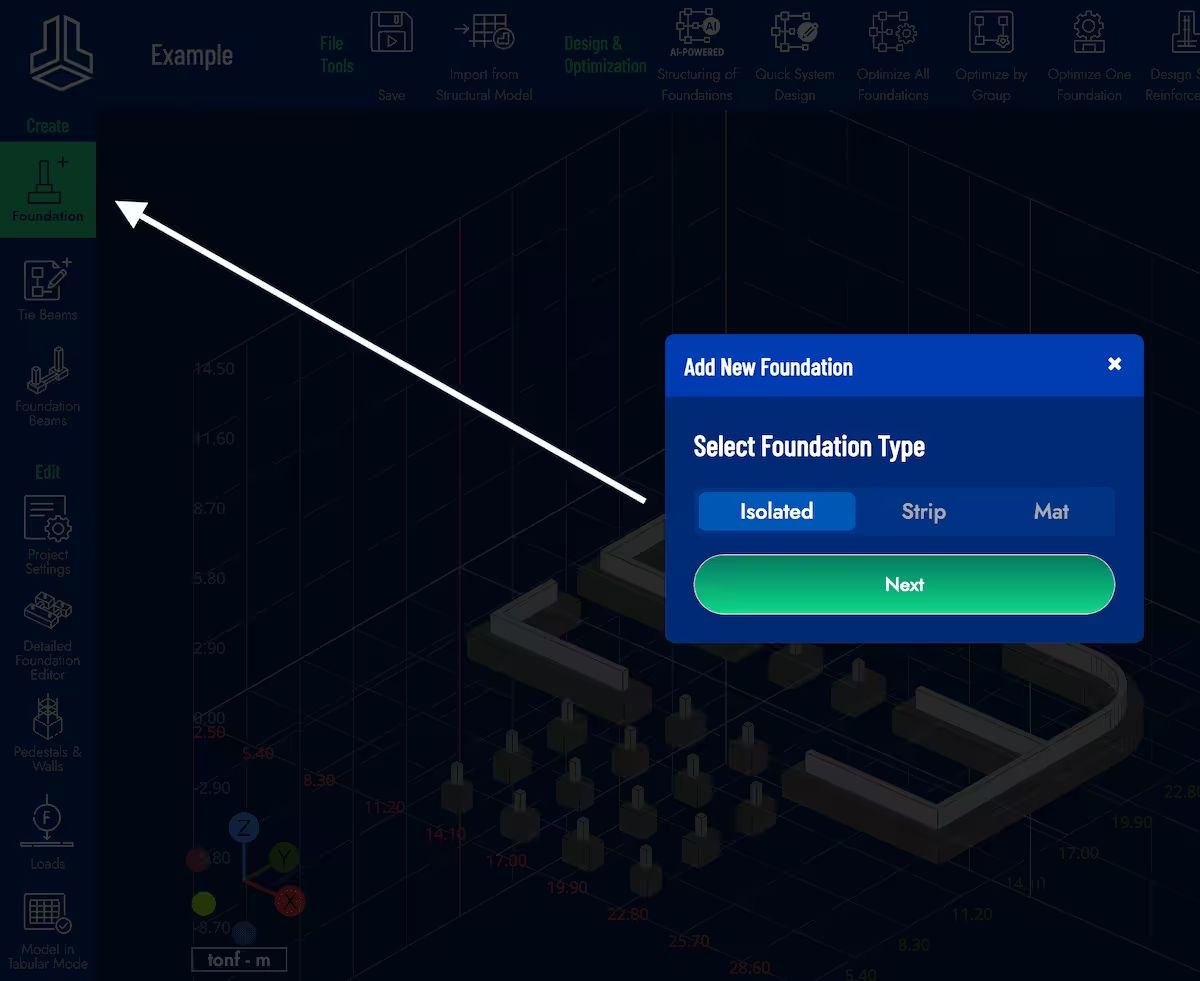
Isolated Foundation
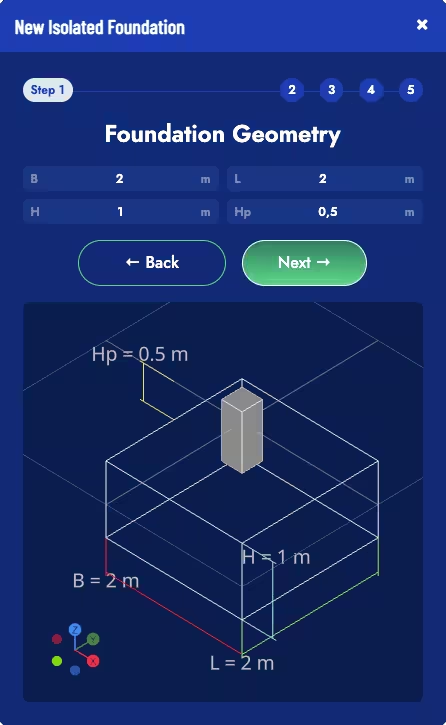
Isolated foundations have a rectangular geometry and include a single pedestal, also rectangular. B and L indicate the foundation dimension in the X and Y axis directions, respectively. H corresponds to the foundation height, and Hp to the distance between the ground level and the top face of the foundation (i.e., the depth of the foundation is H + Hp).
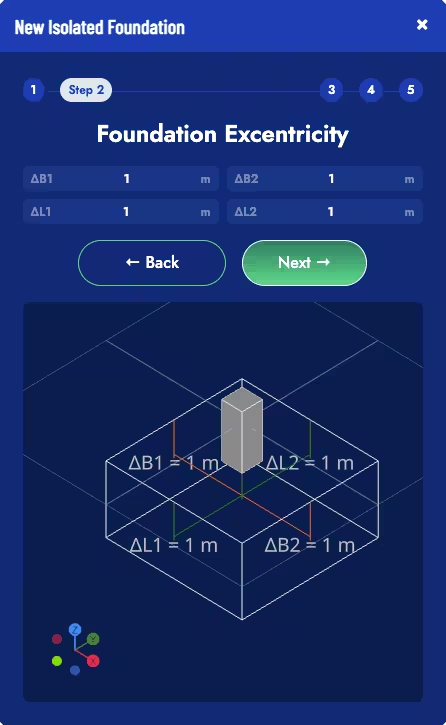
By default, the pedestal is located at the center of the isolated foundation; however, its position can be controlled by defining eccentricities in both directions.
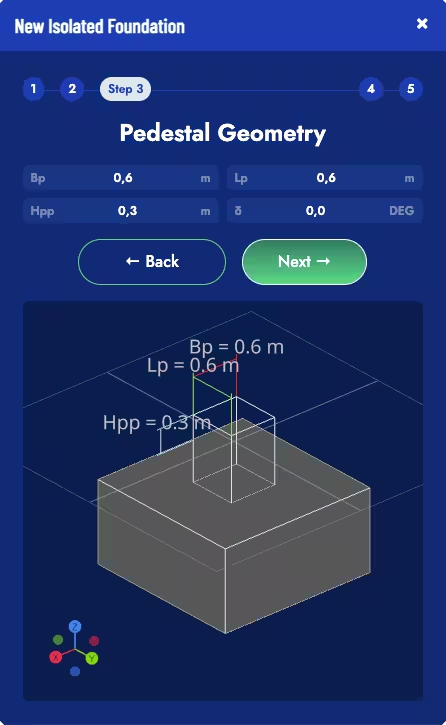
This same tool allows controlling the pedestal geometry through its dimensions Bp and Lp, along the X and Y axes, respectively. In addition, the height of the pedestal above ground level (Hpp) can be defined. It is also possible for the pedestal to have an angle δ with respect to the foundation.
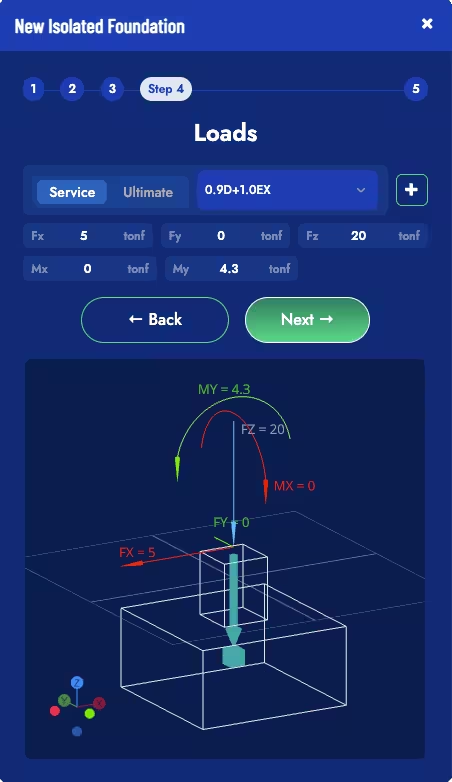
You can create load combinations from this interface, both service loads and ultimate loads, and assign the corresponding loads to the foundation.
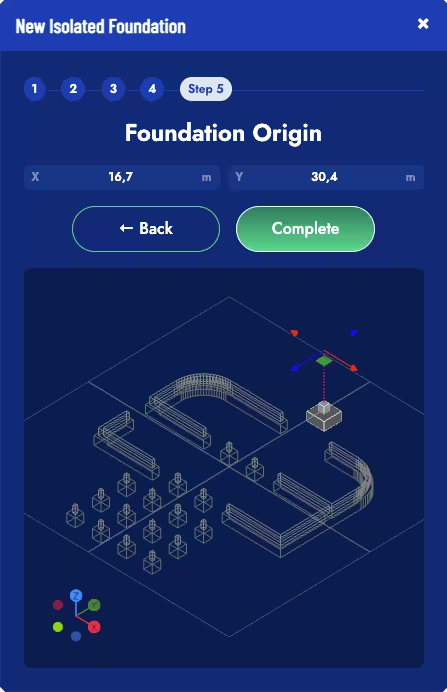
Finally, enter the node coordinates, or move it interactively, to place the foundation in the project.
Strip Foundation
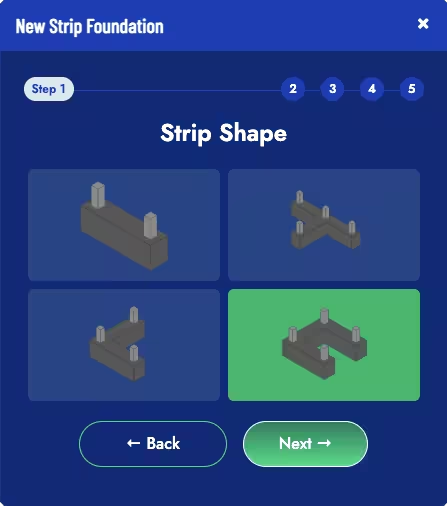
To create a new strip foundation, you can choose from four predefined shapes: linear, T-shape, L-shape, and C-shape.
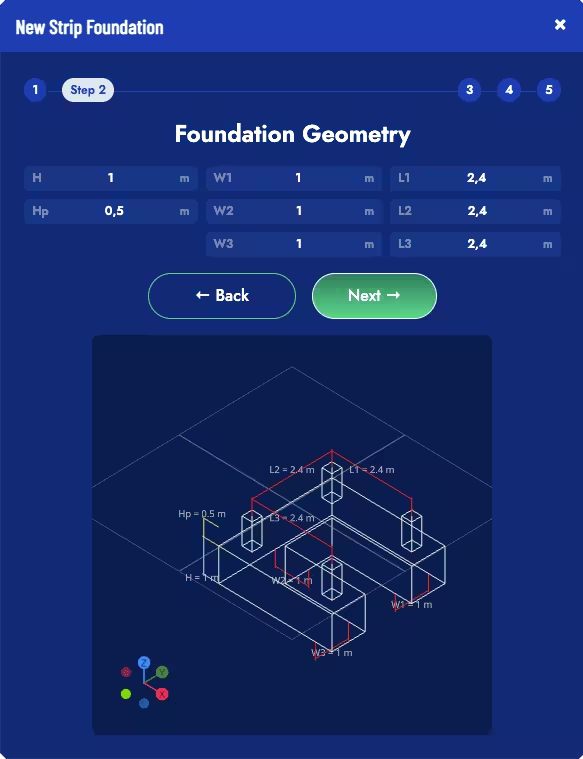
The strip foundation is defined by segments, and you can control the length and width of each segment. You can also control the foundation height (H) and the distance between the ground level and the top face of the foundation (Hp).
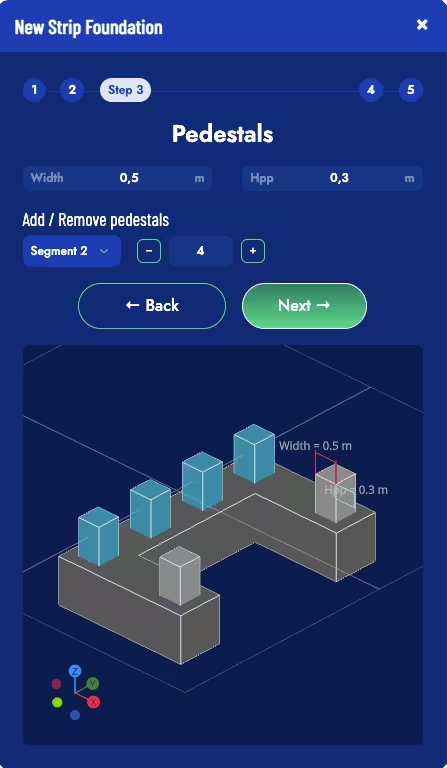
You can adjust the width of the pedestals, as well as the number of pedestals per foundation segment. Each pedestal acts as an independent load point for the foundation.
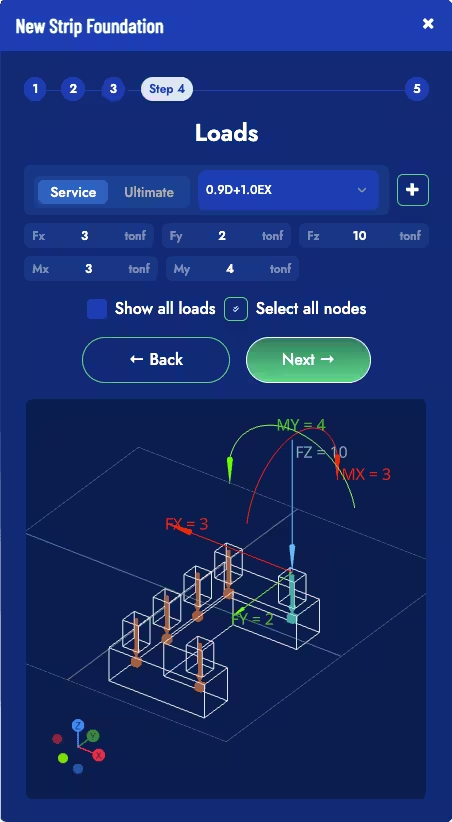
You can create load combinations from this interface, both service loads and ultimate loads, and assign the corresponding loads to each pedestal of the foundation.
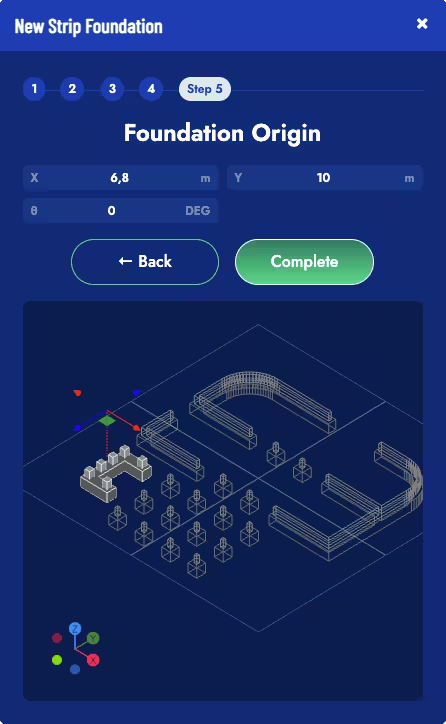
Finally, enter the coordinates of the foundation centroid, as well as the angle it will have with respect to the X–Y axes.
Mat Foundation
To create a new mat foundation, you can choose between the predefined rectangular and circular shapes.
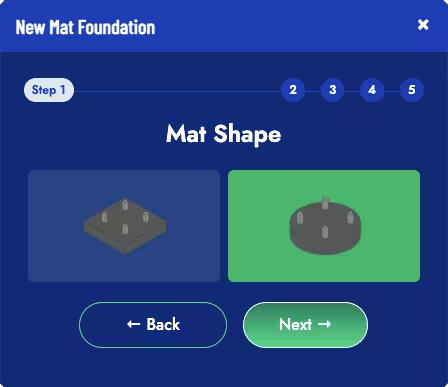
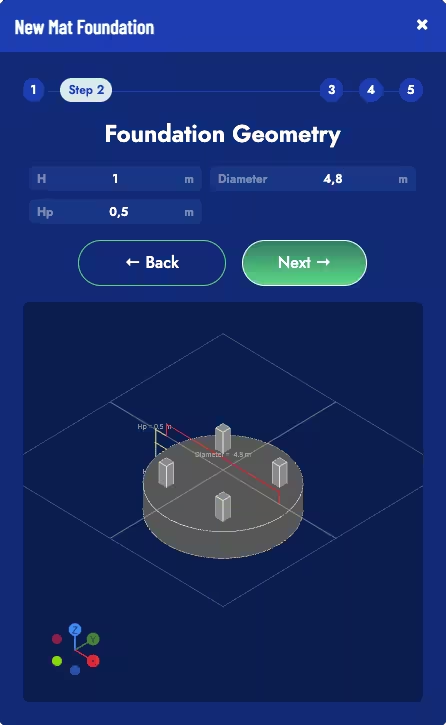
You can control the foundation height (H), the distance between the ground level and the top face of the foundation (Hp), as well as the dimensions that define the foundation.
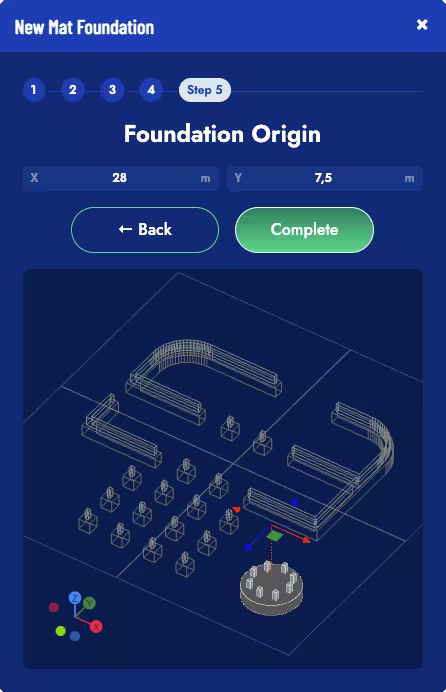
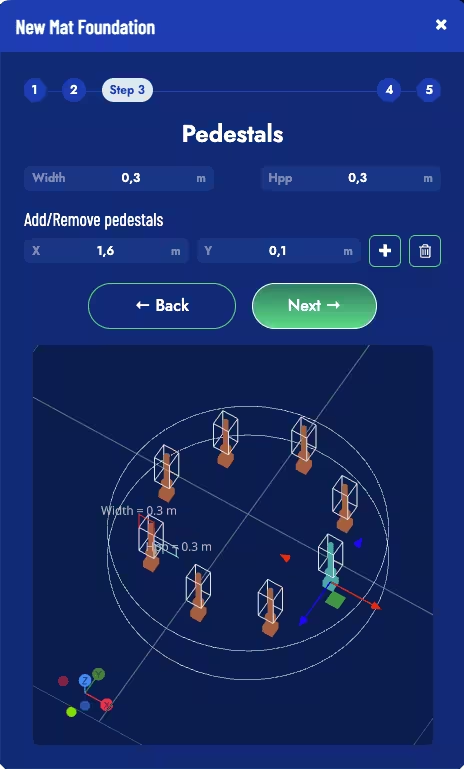
In mat foundations, pedestals can be added at any position within the mat. You can enter the coordinates manually or use the arrow keys to move the pedestal with the cursor.
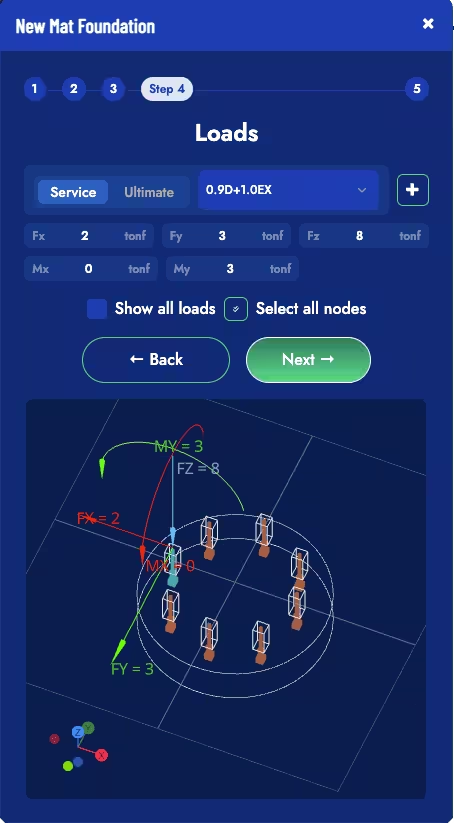
You can create load combinations from this interface, both service loads and ultimate loads, and assign the corresponding loads to each pedestal of the foundation.
Finally, enter the coordinates of the foundation centroid.